Installing and upgrading Gallery 3
Before you start / System requirements
To install Gallery 3 you need the following:
- Summary: Requirements -- Detailed Requirements:
- A *nix based web server (Unix, Linux) with PHP 5.2.3 or later
- PHP must have short_open_tag enabled
- PHP must have the parse_ini_file() function enabled. (it is by default)
- PHP must have safe_mode disabled (it is by default)
- Check the PHP file size upload limit (upload_max_filesize, it is 2M by default)
- exec and shell_exec are not listed in disable_functions
- open_basedir settings that ensure that the image toolkits(s) and other functions don't interfere with the operation of this web based program.
- Required PHP extensions:
- A MySQL5+ database
- Apache 2.2 or newer is required for G3
The installer checks all requirements and will warn you if any of them aren't met. The PHP extensions and configuration comes with the standard PHP package so should be present on most systems by default.
Installation
Installing Gallery 3 is made easy through the included installer. Follow these instructions and you should have a working Gallery 3 installation within a few minutes.
- Download Gallery 3.
- Extract the archive and upload all files and folders to your web server (usually via FTP).
- In the same folder you have copied all the files and folders to (the folder that contains the index.php file) create a folder called "var" (without the quotes).
- Make sure that the var folder is writable. Unfortunately it is difficult to give a general instruction how to do this since it varies largely from hoster to hoster. If you get stuck here try changing the permission of the folder to 777 (via FTP client or by running the command "chmod 777 var" without the quotes via SSH access). (If you want to know more about the security off this folder and your data stored in it please go to Permissions and Security)
- Create a MySQL database for your Gallery 3 installation and note down the username and password for the Database (if required). Usually this is done in the control panel for your website.
- Open your preferred web browser and browse to the web address you have uploaded the Gallery 3 files to in step 2 (e.g. http://www.example.com/gallery3).
- You should see the installation screen which looks like this.
- If you get a warning at this point that no folder could be found to store your data or that the folder "var" is read-only please go back to step 3 and 4 and make sure that the folder was created at the right place and with the right permissions.
- On the installation screen enter the username and password for the database you have created in step 5. Here is an explanation of all fields
| Field name
|
Description
|
| Database name
|
The name of the database you have created in step 5
|
| User
|
The username for accessing the database you have created in step 5. This is not the user name you will be using to log on to you Gallery 3 installation
|
| Password
|
The password for accessing the database you have created in step 5. This is not the password you will be using to log on to you Gallery 3 installation
|
| Host
|
The IP address of the database server. In most cases this is localhost (meaning it is the same server you are installing your Gallery 3 on) so you don't need to change this. If this fails please check the documentation provided by your webhoster.
|
| Table prefix
|
Gallery creates several tables in the database you select to use. This optional field allows you to add a prefix to all these tables.This can be useful if you want to use one database for more than one Gallery 3 installation or for Gallery 3 and any other software that requires a database. You should however only do this if you don't have the possibility to create an own database for Gallery 3.
Example: Gallery 3 creates a table called "items" which contains all information on the photos and videos you upload. If you specify "g3" as prefix this table will be called "g3_items" instead of only "items".
If you are not sure what this all means, just leave this field empty.
|
- Click "Continue". If you get an error screen at this point please read Troubleshooting and common errors
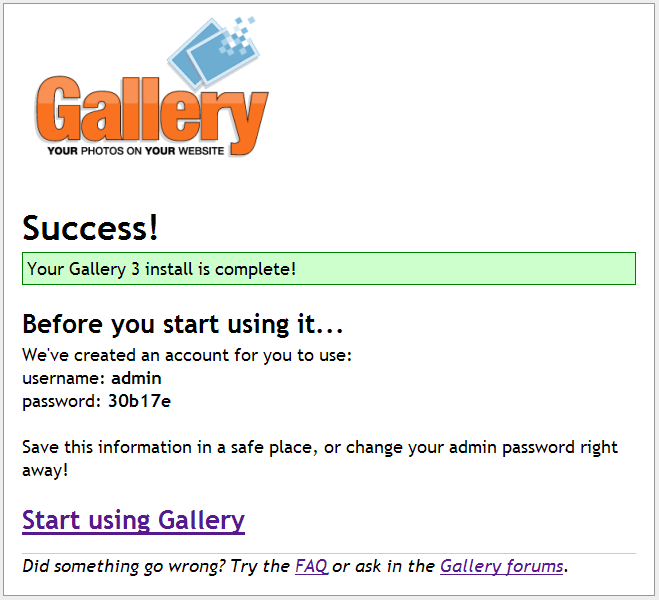
- You should get a "Success" screen presenting you with a user name and password to log on to your Gallery 3 installation and a link saying "Start using Gallery now". Please make sure that you note down this user name and password
- If you click on the "Start using Gallery now" you should be redirected to your Gallery 3 main page and be presented with a popup allowing you to change your password and e-mail address. Please do this immediately
- If you decide to not click on "Start using Gallery now" you may have to login with the user name and password provided to you by the installer. If you do not know these credentials anymore please re-install or read Troubleshooting and common errors
Advanced Installation
If you have a bit more experience with web server etc. this section will give you some more information on configuration etc.
The ".htaccess" file
Included in the gallery3 folder is an .htaccess file which allows you overwrite some server settings to make Gallery 3 a bit faster and to have nicer looking URLs.
To activate these features edit the file and modify it according to the instructions included in the file.
Please be aware that this file will get overwritten when upgrading your installation so you will need to modify the new file included in the new Gallery 3 version you are installing. Please do not use the old file since there might have been changes made to it.
The file "var/database.php"
If you are wondering where Gallery 3 stores your database information (username, password, server etc.) have a look at "/var/database.php". If you need to move to a different database or want to change the database password you can simply edit this file and enter the correct new values here.
The "var" folder
The "var" folder is used by Gallery 3 to store photos, videos, thumbnails and other user data. Permissions on this directory must be maintained for the webserver (Apache/PHP) must be able to write to it.
Upgrading
Multisite users: Gallery 3 does not currently support multisite installations--as Gallery 2 did. And Gallery 3 may never do so. If you wish to transfer individual galleries from a Gallery 2 multisite installation into individual, single, Gallery 3 installations, use the Gallery2 Import module.
To upgrade your installation to the latest Gallery 3 version (e.g. Gallery 3 version 3.0 to 3.1) follow these steps:
- Download the latest version of Gallery 3.
- Extract the archive and upload all files and folders to a new folder (e.g. "gallery3_new" on your web server (usually via FTP).
- Browse to your current installation and go to "Login -> Admin -> Maintenance"
- On the maintenance page click on "Turn on maintenance mode" to prevent user from accessing the gallery while you are upgrading. (this option does not exist in at least 3.0.0RC1, but is present in some later releases)
- Move the var folder from your old folder to the new one. Permissions and ownership on this directory must be maintained. The webserver (Apache/PHP) must be able to write to it after you move it. Also check that hidden files (for example .album.jpg) files are moved as well.
- Copy any custom or downloaded Themes from your old folder to the new one.
- Copy any downloaded Modules from your old folder to the new one. Do not copy the gallery folder from the old to the new.
- Rename the old folder (e.g. from "gallery3" to "gallery3_old")
- Rename the new folder to the name you had for your old folder (e.g. from "gallery3_new" to "gallery3")
- Browse to your Gallery 3 installation and add "/upgrader" at the end of the URL (e.g. http://www.example.com/gallery3/index.php/upgrader)
- Follow the instructions on the upgrader page.
- Browse to your current installation and go to "Login -> Admin -> Maintenance"
- On the maintenance page click on "Turn off maintenance mode" to allow access to your installation again.
Moving your installation to a different server
Basic Outline
- Make a backup of your MySQL database (e.g. via PHPMyAdmin or any other database tool provided by your webhoster)
- Create a new database on the new server and note the username and password
- Import the backup you created in step 1 to the new database.
- Copy all Gallery 3 files and folders from your old server to the new one.
- Edit the file "/var/database.php" and change the database user name and password to the new values. Do not change the table prefix.
- Test your installation by browsing to the new address of your Gallery 3 installation.
Detailed Instructions
This was last tested on Ubuntu 10.04.1 (64-bit). If you used the typical/recommended installation method, the MySQL database will be called gallery3 and your content will be in /var/www/gallery3/var/. If you're moving to a new server, and it's set up just like the old one, this should be pretty easy. The following assumes the default install process was used.
The backup and move
- Get into /var/www/gallery3 and archive your content.
- Move into the directory:
cd /var/www/gallery3
- Create the archive:
sudo tar -cvpzf var.tar.gz var/
- If you're moving this to another server and the new server is already set with [SSH] access, use [SCP] to copy the tarball to the new server:
scp var.tar.gz user-name@new.server.here.com:~/
- Make a backup of the database.
- Using mysqldump:
mysqldump --opt -u root -p'YourPasswordHere' gallery3 > ~/gallery3.sql
- If you don't know what your database's name is, find it.
- Bring up the mysql prompt:
mysql -u root -p'YourPasswordHere'
- List all databases:
show databases;
- Note the correct database name and get out of the mysql prompt:
quit
- If you're moving this to another server and the new server is already set with [SSH] access, use [SCP] to copy gallery.sql to the new server:
scp gallery.sql user-name@new.server.here.com:~/
The restoration
You'll need to follow the basic setup of Gallery 3 to a point and then stop to proceed with the restoration. Essentially, you'll need to stop once you've extracted the zip file. Assuming you've downloaded Gallery and have extracted to its home, you can proceed with the restoration.
- Whether you used scp to get the tarball of your content to this new server or you used some other method, extract the tarball to gallery's home:
sudo tar -xvpzf var.tar.gz -C /var/www/gallery3
- Create the new database so we have somewhere to restore the old data to.
- Using mysql prompt:
- Bring up the mysql prompt:
mysql -u root -p'YourPasswordHere'
- Create the new database:
create database gallery3;
- Verify its existence:
show databases;
- Get out of the mysql prompt:
quit
- Restore the data to the newly created database.
- Using mysql:
mysql -u root -p'YourPasswordHere' gallery3 < ~/gallery3.sql
- Edit /var/www/gallery3/var/databases.php to make sure it has all the correct info:
sudo nano -B /var/www/gallery3/var/database.php
That's pretty much it! You may have to edit the .htaccess file but in most cases, that's rare and is generally only needed if you've tweaked it for something in the previous installation. If you had other modules/plugins installed, you may have to dump those back in there too.
Uninstalling Gallery 3
Important: If you uninstall Gallery 3 you will lose all your photos and other content if you haven't made a backup copy of them.
- Delete all files and folders of your Gallery 3 installation
- Delete the database of your Gallery 3 installation. If you are sharing this database with another installation of Gallery 3 or any other software only drop the tables used by the Gallery 3 installation you want to uninstall
Backing up data
All data (such as photos, videos, thumbnails, resizes, settings etc.) are stored at two locations:
- In the folder var (photos, videos etc.)
- The database (settings, tags, comments etc.)
You need to backup both your database and the var folder if you want to prevent data loss.
Remember to move your backup to another location! Don't leave it on the same server you got the backup from. If the server chucks a drive, burns up with the house around it, gets carried away by a tornado, or otherwise just stops working, your backup is no good if the only copy of the backup was on the server that stopped working. Copy it to an external drive or optical disk and, if possible, move it off site.
3rd-party hosted Gallery installations
Gallery 3 installations hosted by 3rd party outfits can be tricky. It's best to consult your hosting provider for details. In some cases, they've been known to set up a [cron] job for their customers so that they may grab it via [FTP]. This is not the norm, however.
Self-hosted Gallery installations
If you host your own and/or have direct access to the server, you can use the process below. If you used the typical/recommended installation method, the MySQL database will be called gallery3 and your content will be in /var/www/gallery3/var/.
The content
The content your Gallery 3 installation serves to the world is stored in the var directory. Meaning, your photos and videos are in that folder!
- Get into /var/www/gallery3 and archive your content.
- Move into the directory:
cd /var/www/gallery3
- Create the archive:
sudo tar -cvpzf var.tar.gz var/
The database
The database has all the text from your comments, descriptions & titles. It also contains the settings, users and passwords.
- If you know your database's name, use mysqldump and back it up:
mysqldump --opt -u root -p'YourPasswordHere' gallery3 > ~/gallery3.sql
- If you don't know what your database's name is, find it and then proceed with the instructions above.
- Bring up the mysql prompt:
mysql -u root -p'YourPasswordHere'
- List all databases:
show databases;
- Note the correct database name and get out of the mysql prompt:
quit
Bugs and feature requests
If you think you've found a bug in Gallery 3, first search to make sure it's not already been reported. If it hasn't, then please post under "Troubleshooting and Problems" to see if someone can help fix the problem and verify that it's a bug. If it is, then please create a new ticket here by logging into SourceForge and clicking on New Ticket.
If you have a feature request, again, please search to make sure it's not been submitted already. If not, create a new ticket here by logging into SourceForge and clicking on New Ticket. You can also create a thread in the forums to create some discussion for your idea.